Feature deep dive

Tasks: the delivery backlog next to the design

Keep the questions, decisions and change requests about the model in the same workspace as the model, linked to the exact objects they concern.

Tasks tree view in Order Capture, Fulfilment and Billing swimlanes: an epic with its user story and task, plus features, a bug and further tasks, each with its status, priority and assignee
Overview

Open questions where the design lives

Every work item can point at the objects it affects, and each of those objects shows the work linked to it.

Specifying a warehouse generates work: a definition to confirm with the business, a source mapping to validate, a load rule to agree, a change request after go-live. That work often sits in a separate tracker, cut off from the design it concerns.

Model One keeps it attached. A work item links to the entities, relationships, submodels, concepts, graphs, Flows, dictionary terms and physical models it is about, and each of them lists its related tasks and carries a badge counting the open ones. Tree, board and list views run over one backlog, so a delivery lead and a modeler can each work the way they prefer.

Work items also know what they changed. Each person picks the work item they are working on, and their changes to the model count toward it, so a work item lists everything it touched, and an epic everything its effort touched. That is what the Environments tab promotes to TEST and PROD, one finished effort at a time.

It is a modeling backlog, not a replacement for your company tracker: there are no sprints or burndown charts and no sync with Jira or Azure DevOps. A work item's link can be pasted into either, and it opens the exact item for anyone with access.

Walkthrough

Running modeling work as work

Five steps from raising a question to seeing, on the model itself, how it was settled and what the work changed.

Step 1

Build a backlog with real structure

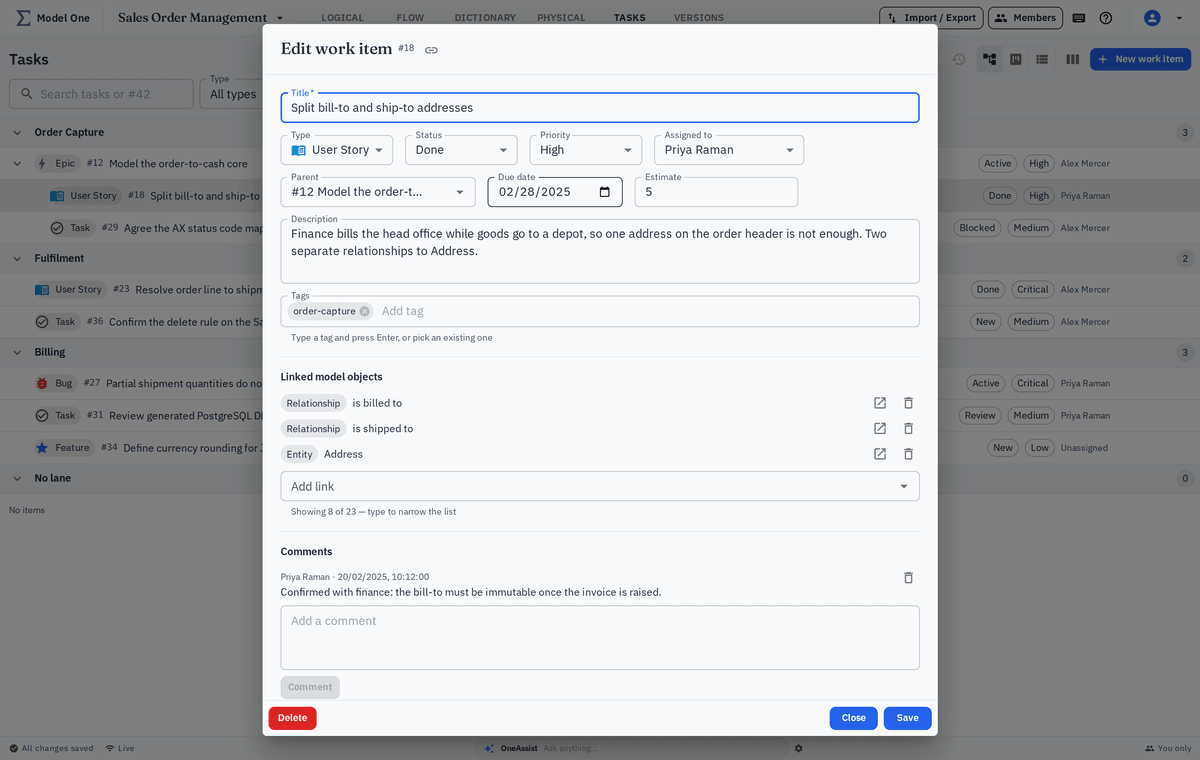
Epics, features, user stories, tasks and bugs nest freely, and Model One refuses a parent that would create a loop. Every item gets a permanent number such as #42 that is never reused, so a question about #42 is unambiguous. Tag work by area and swimlanes split every view into those bands: here order capture, fulfilment and billing; a warehouse team might use staging, warehouse and reporting.

  • Epic, feature, user story, task and bug, nested freely in one tree
  • Status, priority, assignee, due date, estimate and tags on every item
  • Blocked by dependencies, with a loop through other items refused
  • Permanent #IDs and a copyable deep link that opens the exact item
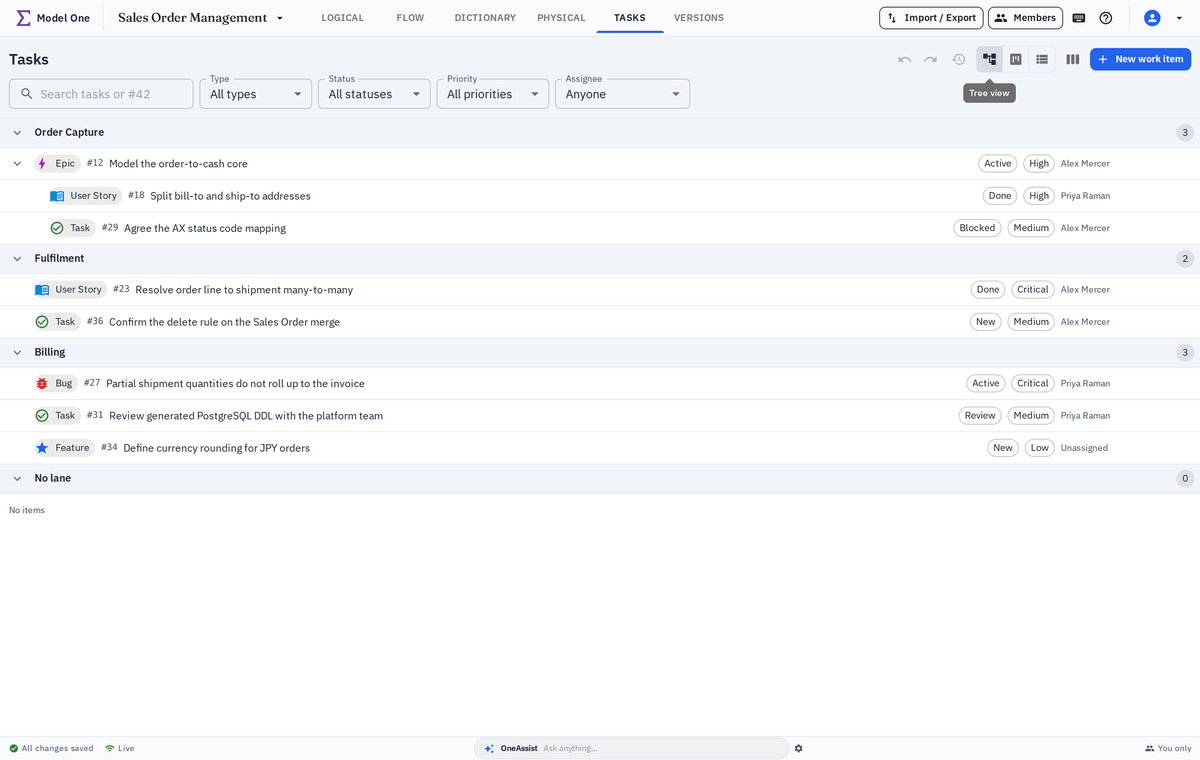
Tasks tree view in Order Capture, Fulfilment and Billing swimlanes: an epic with its user story and task, plus features, a bug and further tasks, each with its status, priority and assignee
Step 3

Work the board

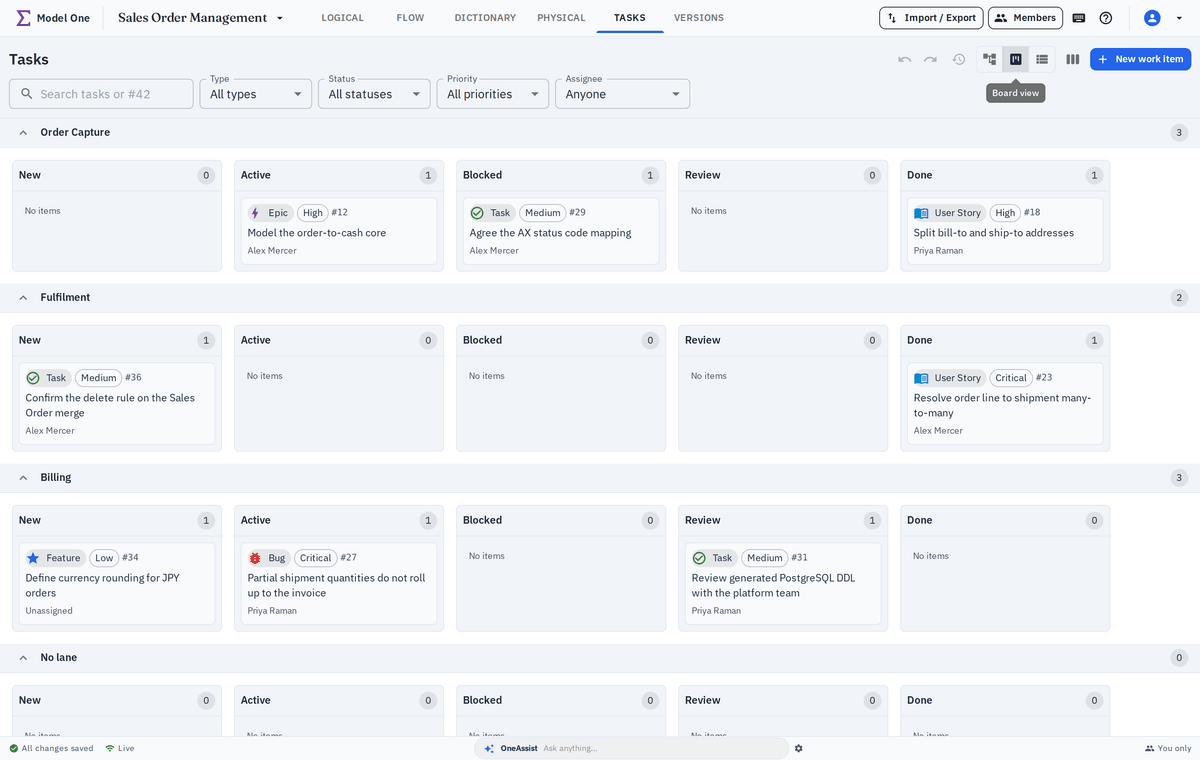
Drag a card to another column to change its status. Which statuses are columns, and in what order, is a project setting shared by everyone, and so are the swimlanes. Filters are yours alone: narrow by type, status, priority or assignee, several values at a time. Model One remembers them for each project in your browser, and they also decide what the task badges on the model count. Follow a work item, alone or with everything below it, and a bell marks it in every view.

  • Drag cards across status columns; columns and their order shared per project
  • Swimlanes by tag, such as a business area or a warehouse layer, shared by the whole project
  • Multi-value filters on type, status, priority and assignee, remembered for each project
  • Tree, board and list views over the same backlog
  • Follow one item or a whole effort; the Following filter shows only those
Task board with New, Active, Blocked, Review and Done columns, split into Order Capture, Fulfilment and Billing swimlanes
Step 4

See the work from the model's side

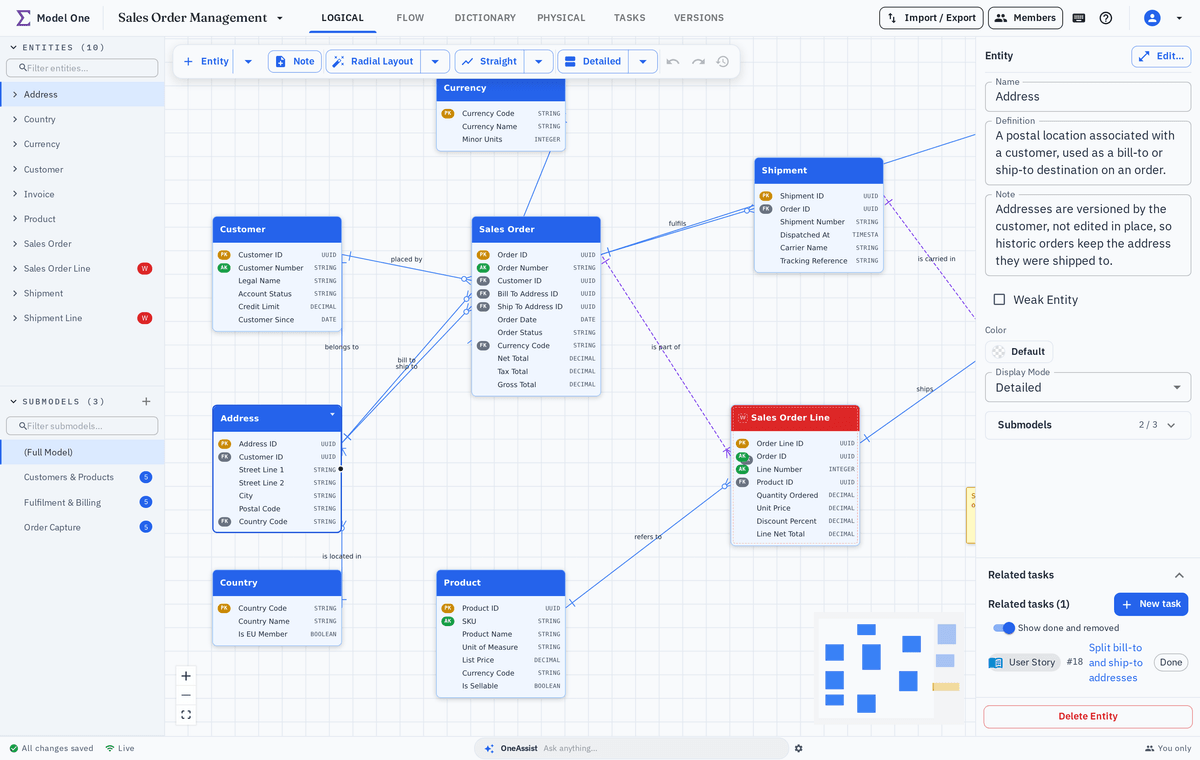
Every object with open work carries a red badge counting it, on the diagrams and in the side lists. A concept, submodel, graph or folder adds up the work on everything inside it, and a click on a badge lists that work in Tasks. Open the object and its Related tasks list shows the linked work, newest first, with done items one switch away, and New task starts a work item already linked to it. When someone later asks why the model looks as it does, the work item's comments and change history answer, and the object's own field-by-field trail is in the audit log.

  • Open-work badges that follow your Tasks filters, such as only the work assigned to you
  • Related tasks and New task on every object a work item can link to
  • Change history on each work item: fields, links, dependencies and comments
  • Work items are not part of version snapshots; their history is in the audit log

Versions & audit

Address entity in the Logical view with its Related tasks panel listing the done user story #18, and red badges counting open work on Sales Order, Sales Order Line and the submodels in the Models list
Step 5

See what each piece of work changed

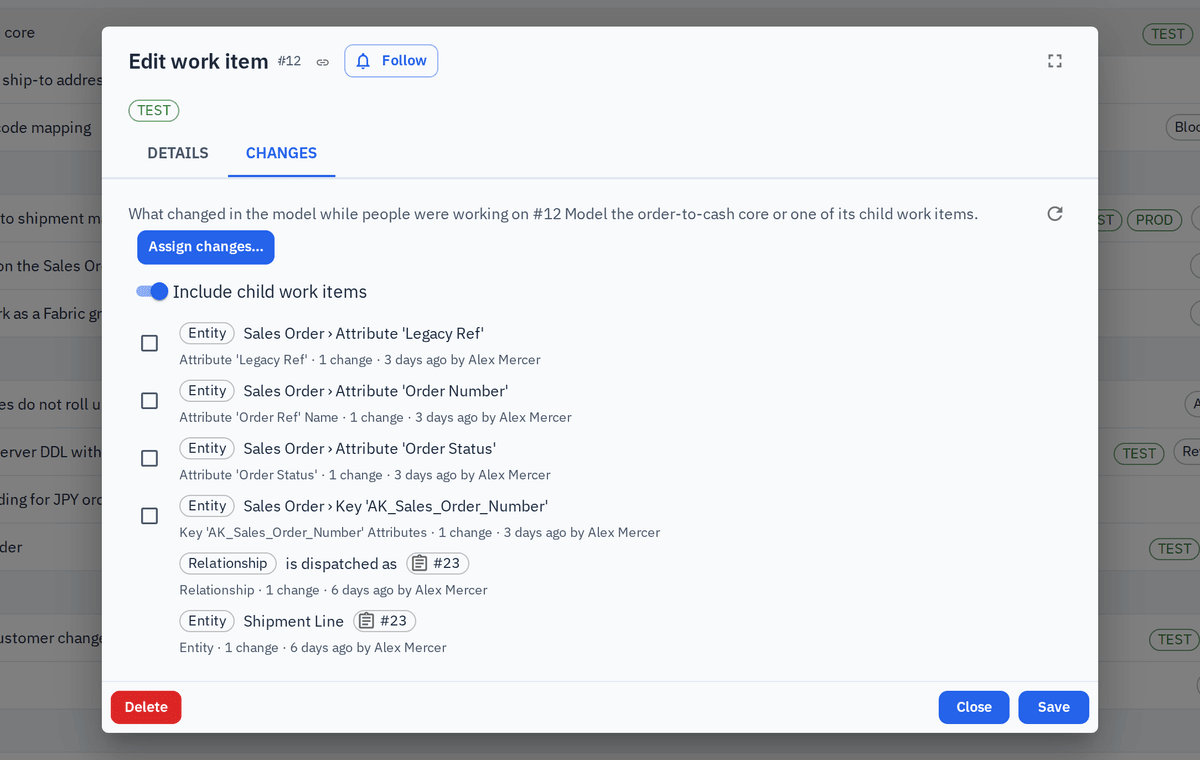
Pick the work item you are working on under Working on in the status bar, and each change you make to the logical model, the dictionary, Flows, physical models and sources counts toward it, as do the changes OneAssist and your agents make for you. The work item's Changes tab lists every part of the model it changed, with when and by whom, and Include child work items shows what a whole effort changed.

  • Your pick is kept for each project, in every tab and browser
  • Changes made with no work item picked wait for an editor to assign them
  • Move a change to another work item, or attribute the differences from a version
  • The audit log shows each change's work item, and an assignment never rewrites a change

Environments

The Changes tab of the epic being worked on, with its child work items included: the attributes, key, entity and relationship it changed, each with when and by whom
Highlights

Why keep the backlog in the model

Context is what a separate tracker throws away.

Two-way links

Badges show at a glance which objects have open work, and one click takes you from an object to its tasks or from a task to its objects.

One backlog, three views

A tree for planning, a board for the daily flow of work and a list for work organised by tag.

Decisions that survive

Comments and each item's change history keep the reasoning next to the design it changed.

OneAssist on the backlog

Where OneAssist is set up, ask it what is blocked or to count open work by status. In Agent mode it can also raise, link or bulk-update items.

Follow the work you care about

Follow one work item, or an epic with everything below it, also the items added later. Viewers can follow too, and a bell marks each item you follow.

Email when work moves

When email is on, you get an email when a work item is assigned to you, or when someone changes or comments on one that is assigned to you or that you follow. Soon, every hour or once a day, in your own time zone and language.

Keep exploring

What tasks connect to

Work items reach into every other module.

See tasks and models working together

We will run a real review round with you: a raised question, the objects it touches, the decision and the history it leaves.