Feature deep dive

Flow

Show how data actually moves between processes and systems — and keep it connected to the model it describes.

Flow diagram in Model One
Overview

The movement between the boxes

A logical model says what exists; Flow says where it travels and who touches it.

Flow diagrams in Model One are not standalone drawings. Each flow is typed by the entities it carries, so the diagram is checked against the same model your architects and analysts already agreed on.

That connection is what makes impact analysis possible: change an entity and you can immediately see every flow, system and process affected by it.

The screenshots below use a small demo landscape so the structure is easy to follow.

Walkthrough

Documenting a load, end to end

Four steps from source systems to a loaded entity.

Step 1

Start from the source systems

Bring in the tables you actually read from, then place the processing steps between them and the model they land in.

  • Source objects imported from the systems you load from
  • Typed processing steps: validate, lookup, join, union, merge and more
  • Target entities taken straight from the logical model
  • Free layout with snapping and alignment guides
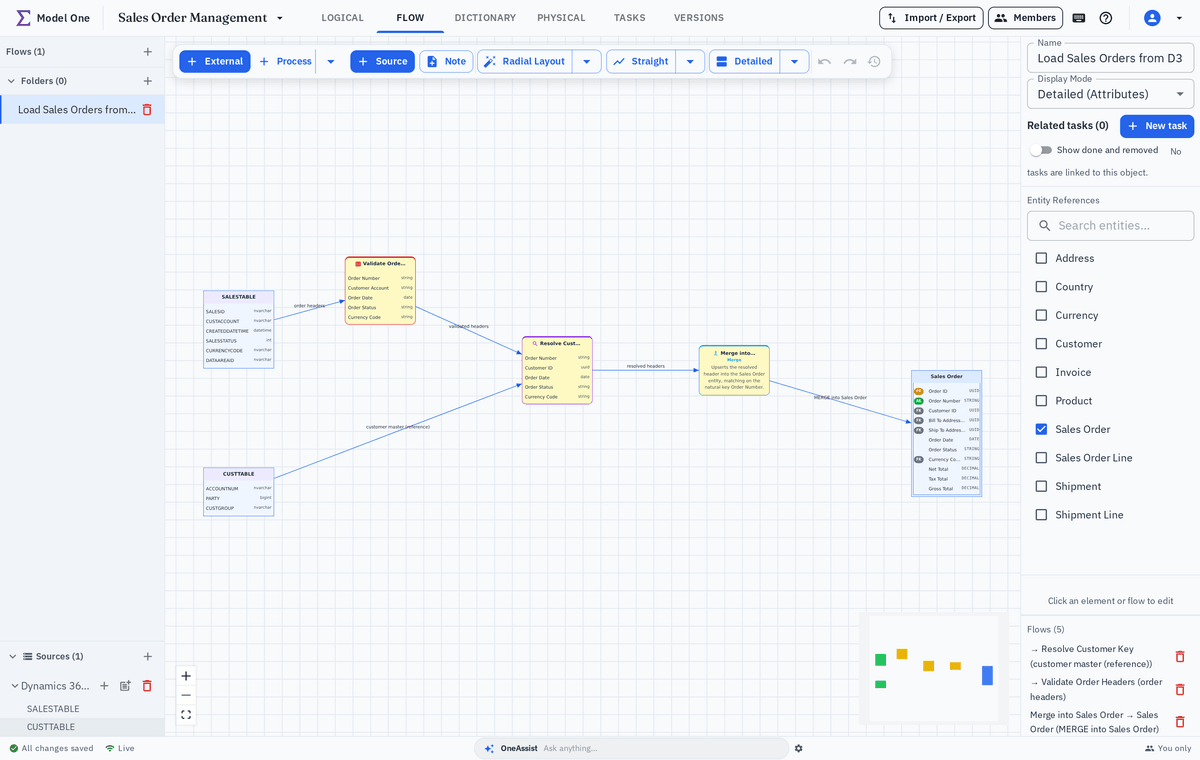
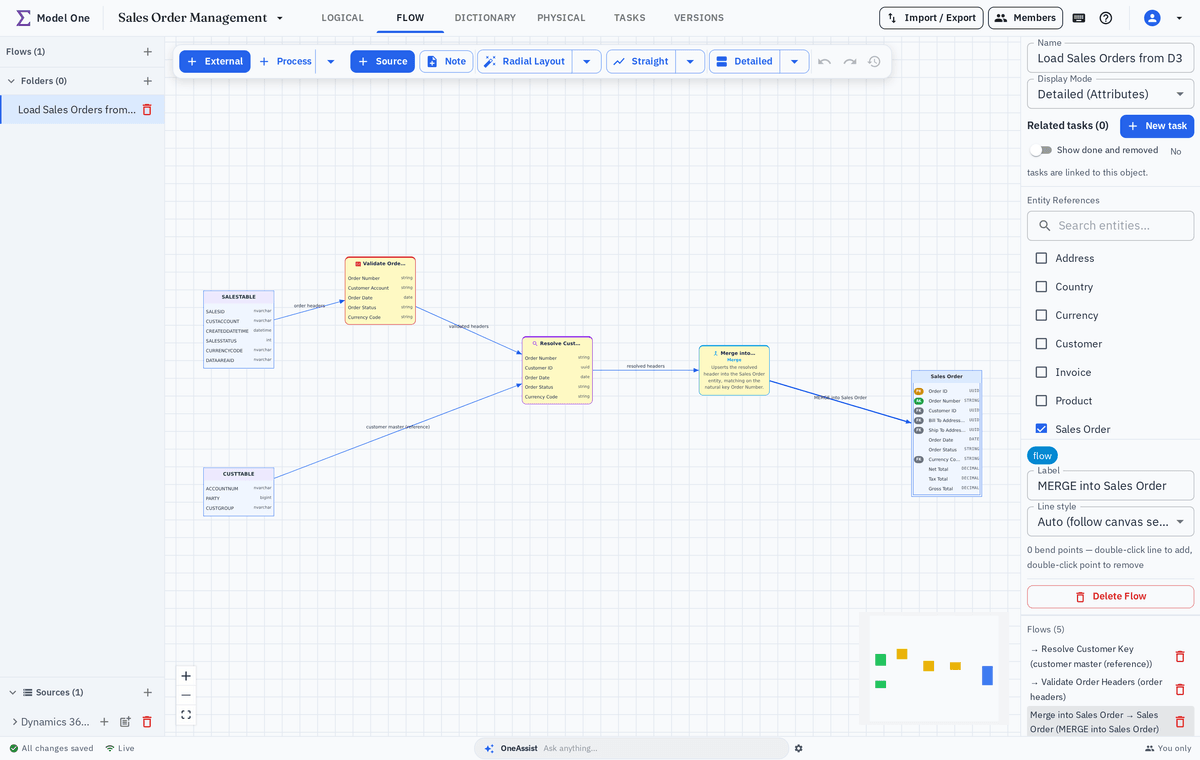
Flow diagram loading sales orders, with the Dynamics 365 source expanded to show the tables read from it
Step 2

Say what each step actually does

Map source attributes to their destinations and pick the process type that matches what the step really does. The diagram stops being a picture and becomes a specification.

  • Attribute-level mapping from source to destination
  • Twenty process types — join, union, lookup, merge, aggregate, filter, validate and more — each with its own configuration
  • Export the Flow as dbt models that run in your transformation pipeline
  • Warnings when a mapping references a removed attribute
A flow selected to show the merge that loads Sales Order
Step 3

Show as much detail as the audience needs

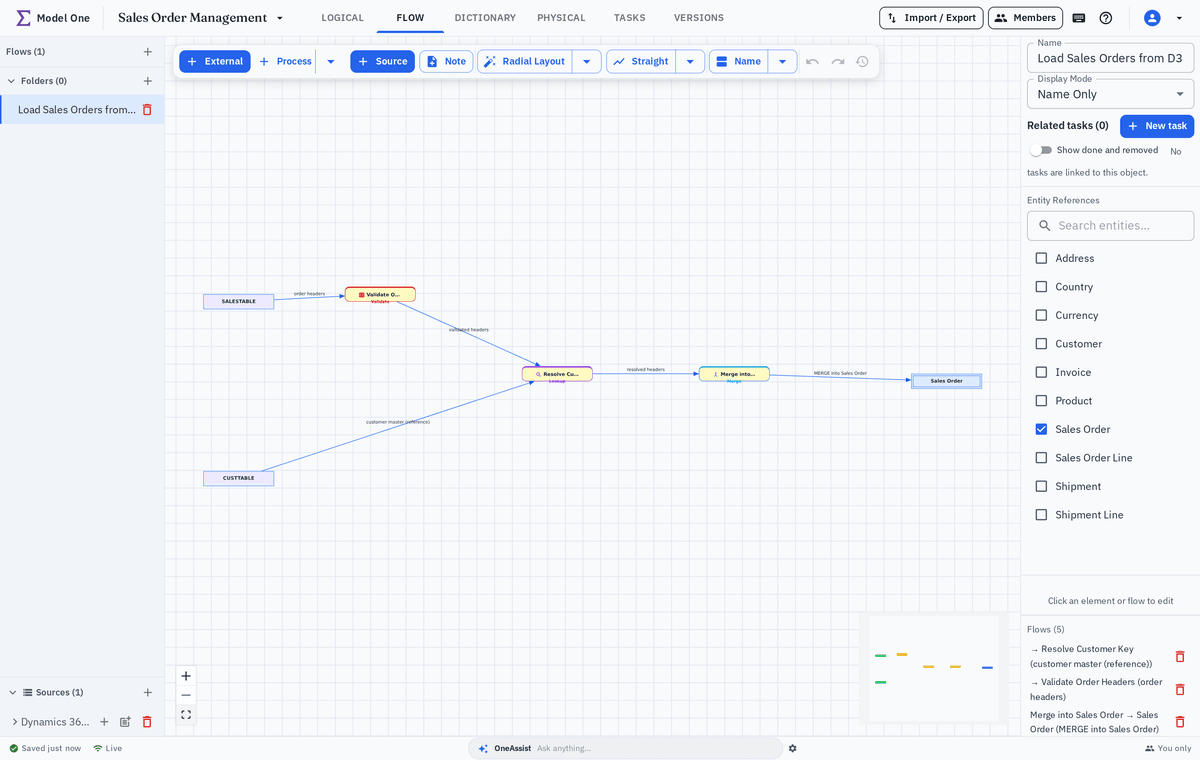
Switch the whole diagram between a name-only overview and full attribute detail, so the same Flow serves a stakeholder walkthrough and an implementation review.

  • Name-only, compact and detailed display modes
  • Detail level overridden per element where it matters
  • One diagram to maintain instead of two
  • Export as an image for slides and documents
The same Flow diagram shown in name-only display mode
Step 4

Run impact analysis before you change anything

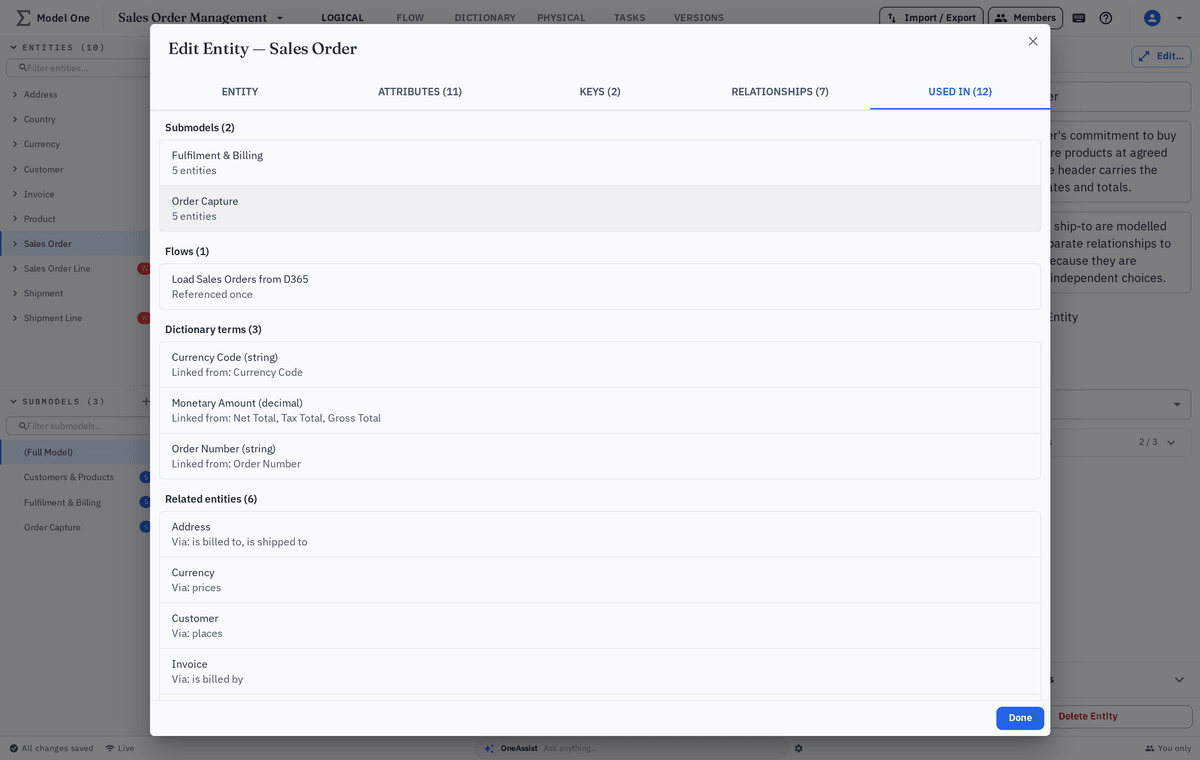
Select an entity and see every Flow that loads or reads it, so a change conversation starts with facts rather than guesses.

  • Usages listed per entity across all Flow diagrams
  • Jump straight from a usage to the diagram
  • Link findings to tasks for follow-up
  • Share a read-only view with affected teams
Panel listing the Flows that load a selected entity
Highlights

Why connected flows matter

The difference between a drawing and a model you can rely on.

Typed by real entities

Every flow references the logical model, so diagrams cannot silently drift out of date.

Rules recorded in place

Validation rules, match keys and merge conditions live on the step that applies them.

Impact analysis

See everything a proposed change would touch before the change is made.

Keep exploring

What Flow connects to

Flows sit between the concepts you define and the systems that store them.

Map one of your own data flows

Bring a real integration and we will model it end to end with you.